-
E-mail
sales@shmingzi.com
-
Phone
15358830119
-
Address
Building 1, 388 Dengyun Road, High tech Zone, Kunshan City, Jiangsu Province
Product Categories
Kartes Optical Instruments (Suzhou) Co., Ltd
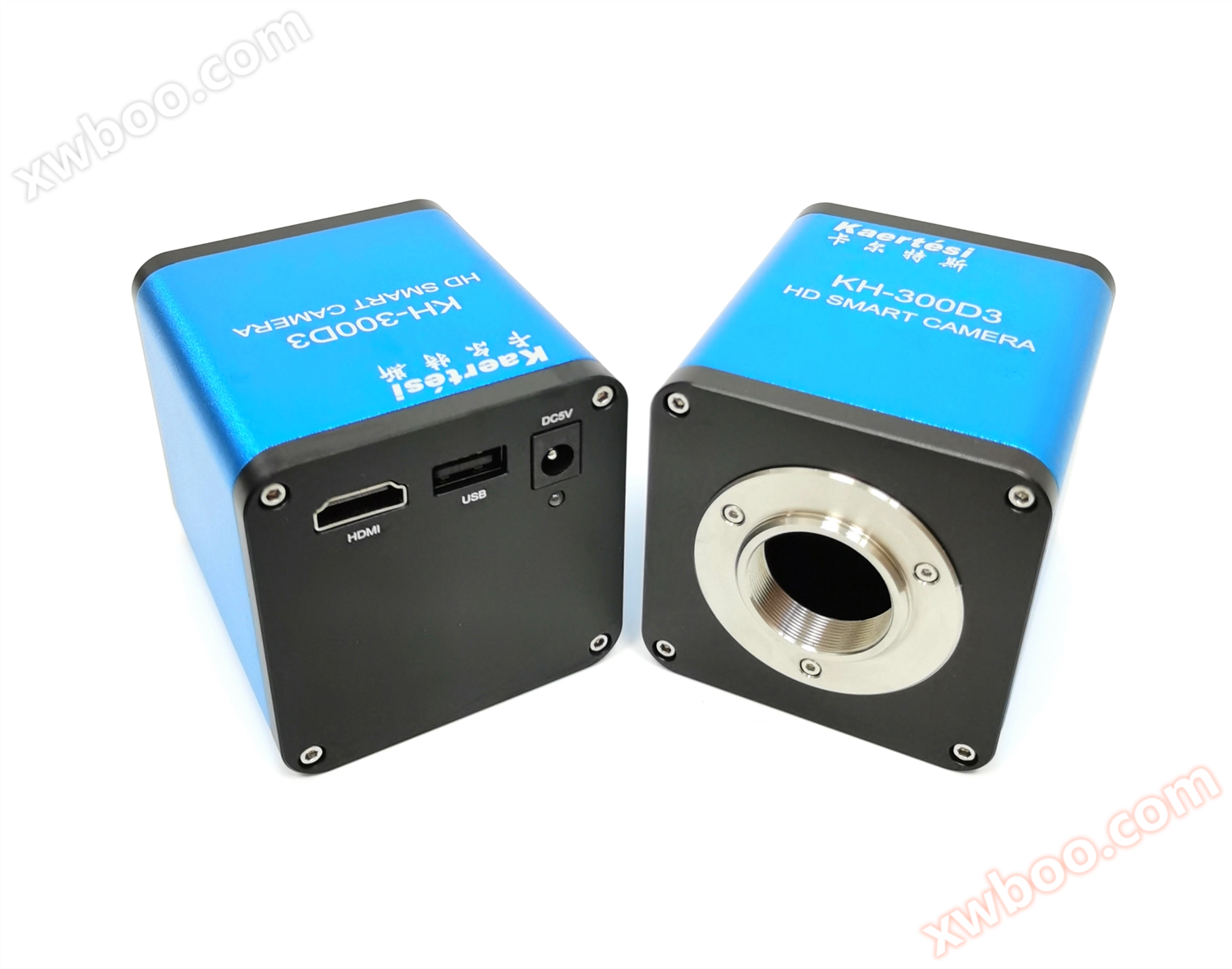
KRTS KH-300D2 high-definition autofocus industrial camera
NegotiableUpdate on 12/08
- Model
- Nature of the Manufacturer
- Producers
- Product Category
- Place of Origin
Overview
1、 Camera external dimensions 2. Camera interface introduction 1. HDMI interface, 2. USB interface, 3. (KH-300DU supported), 4.5V power interface, 5. LED indicator light 3. Menu function display screen with magnification displayed in the lower right corner; Click on the zoom in/out icon with the mouse to change the magnification factor; When selecting 'Manual Focus', the' Focus Position 'can be adjusted
Product Details
1、 Camera dimensions


1.HDMI interface, 2. USB interface,3.(KH-300DU supported), 4.5V power interface, 5. LED indicator light
3、 Menu functionThe magnification is displayed in the lower right corner of the screen;
Click on the zoom in/out icon with the mouse to change the magnification factor;
When selecting 'Manual Focus', the' Focus Position 'can be adjusted.
When selecting the "central area", the focus box can be called up and the settings can be saved.
When selecting 'Auto Exposure', the 'Brightness' can be adjusted; When selecting 'Manual Exposure', the 'Gain' can be adjusted.
When selecting 'Manual White Balance', the 'Red Green Blue' color values can be adjusted.
When selecting "Ezoom", the "zoom (optical zoom/digital zoom)" can be adjusted
When selecting 'Save Image', an icon appears in the center of the screen and automatically saves to the TF card in the format selected on the system interface.
When selecting "Record", the Rec icon appears at the bottom right of the screen to start recording. Click the "Record" button again to stop recording and automatically save to a USB drive in H.264 format.
8. Inverted: Flip the image vertically; Flip: Flip the image horizontally.
9.50/60HZ: Anti screen flicker.
10. Reset: Restore to factory settings.
1. The crosshair can be selected as "display" or "hide". 2. The crosshair can be colored. 3. Reset cable: Restore to factory settings. 4. Centerline: Display a set of crosshairs located at the center position. 5. Save: Save the settings.


The advantages of autofocus function
Simple operation, improved efficiency, no need for manual focusing: Select the "AF" button to enter the autofocus mode. Within the focus range, there is no need to manually adjust the operation, and the focus can be instantly completed. In this mode, after moving the target object or changing the working distance, the program will judge that the image is blurred and automatically focus again, thus achieving real-time clear and visible images within the focus frame


4、 Precautions for use
Before powering on the device, please connect the mouse first.In 'Auto Focus' mode, the program will automatically refocus if the image is blurry; Switch to the 'one key focus' mode, lock the focus after performing one autofocus operation, and in this mode, image blur will not trigger a re autofocus; When using the 'manual focus' function, the MF can be adjusted.
3. If automatic focusing is not possible in certain special scenarios (such as smooth surfaces), please move the focusing frame to a detailed object, switch to 'one click focusing' to perform an automatic focusing operation, or switch to 'manual focusing' mode to manually focus by adjusting MF.
When using the "automatic exposure" function, the brightness can be adjusted (brightness range 0~100, default value 56); When using the 'manual exposure' function, the gain can be adjusted.
When clicking the "Save Image" button to capture the image, an icon will appear in the center of the screen and automatically save it to the TF card in the format selected on the system interface.
When clicking the "Record" button to record, the Rec icon appears at the bottom right of the screen to start recording. Click the "Record" button again to stop recording and automatically save it to the TF card in H.264 format. After recording a single file that is full, end the file and automatically create a new one to continue recording.
When environmental factors cause water mist to form on the lens, the defogging function can be enabled on the system interface. The maximum working time for a single operation is 2 hours, and it will automatically turn off after the timeout. During this period, it can also be manually turned off at any time.
*All accessories are subject to the actual product
|
model |
KRTS KH-300D2 |
|
sensor type |
colorCMOS |
|
Effective pixels |
200megapixel |
|
Target size |
1/1.9」 |
|
menu |
all-digitalUIdesign |
|
operating mode |
Mouse operation |
|
power supply |
DC5V |
|
Output |
HDMI |
|
Display frame rate |
1080P@60fps / 1080P@50fps |
|
Scanning method |
progressive scanning |
|
white balance |
hand movement/automatic |
|
Exposure method |
automatic/hand movement |
|
Electronic Shutter |
1/50s(1/60s)~1/10000s |
|
work distance |
10cm~∞ |
|
Digital amplification |
support |
|
Storage function |
Not supported (optional)KRTS KH-300DUSeries) |
Similar Product Recommend