-
E-mail
88053585@163.COM
-
Phone
13396571186
-
Address
Room 506, Building C, Hangzhou Weige Technology Park, Xiangmao Road, Gongshu District, Hangzhou City
Product Categories
Hangzhou Qiangxin Technology
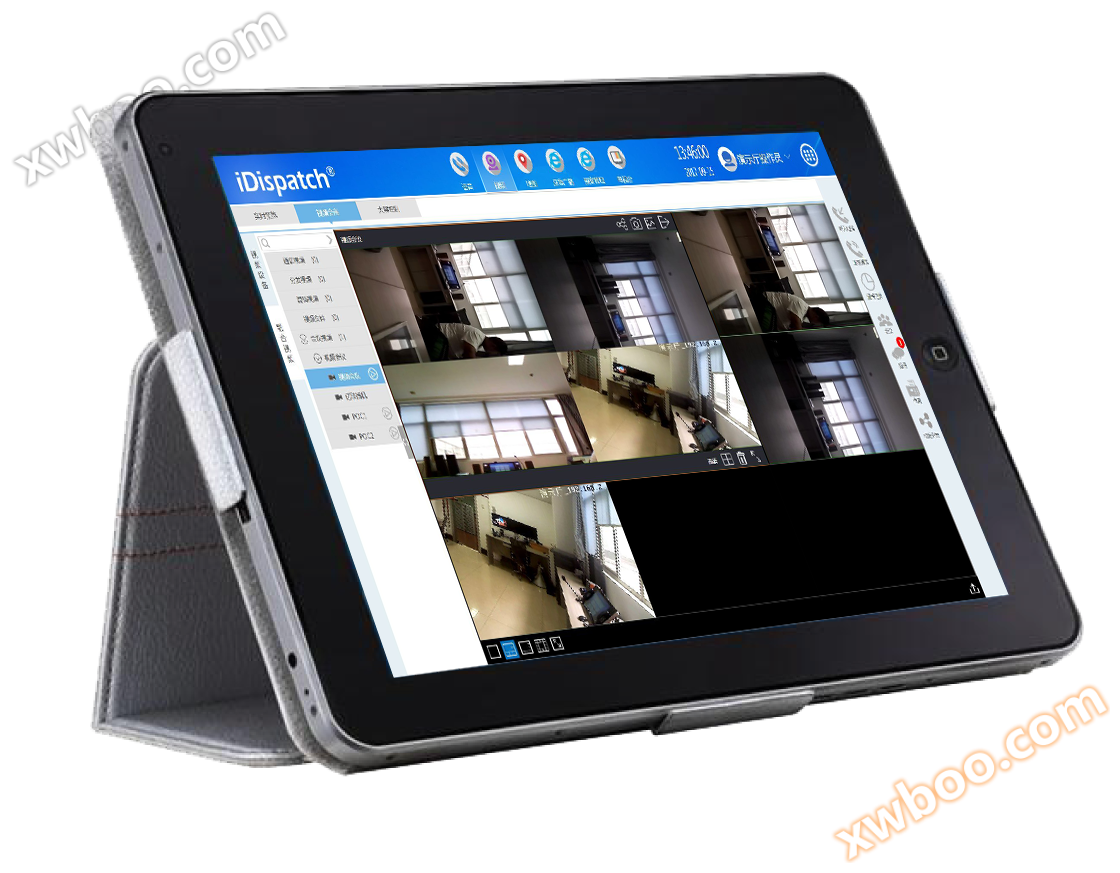
Mobile command and dispatch
NegotiableUpdate on 04/09
- Model
- Nature of the Manufacturer
- Producers
- Product Category
- Place of Origin
Overview
If you are interested in our products, please contact us. Contact us to share:
Product Details

| serial number | functional type | Function Name | description |
| 1 | System management | login | If the system login is successful, the<Login>button in the menu bar will be grayed out and not supported for use; If the system login fails, the button will light up and click to pop up the login interface |
| 2 | configuration | Group member panel layout can be configured; SIP phone parameter configuration; Configure audio equipment, volume, and other parameters; And configure some basic operations. | |
| 3 | maintenance | Can perform maintenance operations on the system; | |
| 4 | Close | Shut down the system | |
| 5 | restart | Restart the system | |
| 6 | Basic functions | Call Out Function | You can click on the group or dial to call users outside the group to establish a call |
| 7 | Response function | User incoming call, default operator automatically responds. When a user calls into the dispatch center, the incoming phone number will be displayed in the incoming call area. When a single user calls in, the operator will respond and directly communicate with the operator; When multiple users call in, they enter the incoming call waiting queue (displaying up to 3 users at the same time), and the operator responds to the call with the user with higher priority in the waiting queue. When an incoming call ends, the incoming user waiting below will move up. | |
| 8 | video call | Can achieve synchronization of voice and video calls | |
| 9 | Wire removal function | You can disconnect yourself or the calling party, but not the monitoring status user. | |
| 10 | Call hold/release hold | Can hold the user in the call, and the user can listen to the hold tone; Users who click on 'hold status' can release the hold and resume communication with the operator | |
| 11 | Mute function | When the operator is in a conversation with users inside or outside the group, or when the operator clicks the<mute>button in the venue, the button turns blue and becomes effective. If the other party cannot hear the operator, the operator can hear the other party; Click the<Mute>button again to cancel the mute function and restore normal communication between both parties. | |
| 12 | Recording function | There are two recording methods for calls: manual recording and automatic recording, which are set by the scheduling administrator. | |
| 13 | Selective call function | By using the "meeting key+user key" selective calling, users from different groups can be added to the venue one by one. | |
| 14 | Group call function | Select the group you want to call and click the "<Meeting>+<Group Name>" key combination to add all users in the group to the meeting. | |
| 15 | call transfer | The transfer function is effective for incoming users and is transferred by operators to users within the group. | |
| 16 | Advanced features | Strong insertion/removal function | Two users in the group are making a call, and the dispatch center can detect the call status of these two users. The operator can forcefully insert/remove the "call monitoring" status for calls between dual-use users. |
| 17 | Meeting function | Provide users with simple meeting functions that can support multiple users to make calls simultaneously. The conference function must be used in conjunction with the conference server. You can add meeting members, enable/disable speaking, end meetings, and perform other operations. | |
| 18 | System Maintenance | Reconnection mechanism | When there is an abnormality on the server or portable command center, the scheduling interface will pop up a system reconnection dialog box. |
| 19 | Function Tips | Click on the function button in the functional area, and a function prompt for the button will pop up at the bottom of the system interface, which is displayed in three types of information: prompt information; Alarm information; Error message. |
(Editor in charge: admin)