-
E-mail
18206139191@163.com
-
Phone
18206139191
-
Address
2505, Building 2, Jitian International Plaza, 999 Bailu South Road, Kunshan Development Zone
Suzhou Yujingheng Automation Equipment Co., Ltd
Guidelines for Using Weighing and Piece Measuring Electronic Scales: Counting Employee Wages+Comparing Pre - and Post Processing Values
Date: 2025-12-22Read: 11

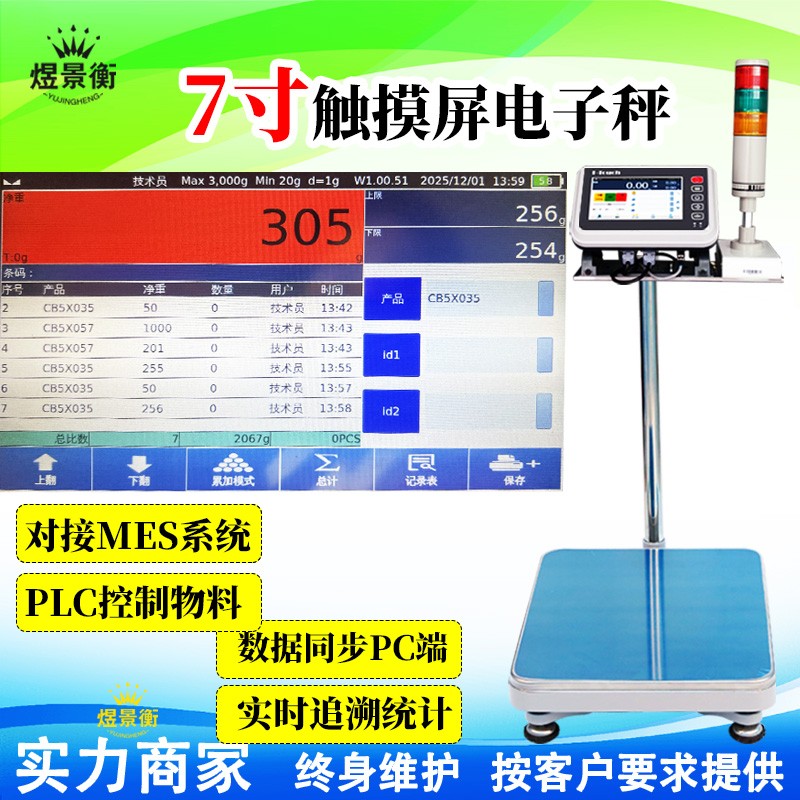
Guidelines for Using Weighing and Piece Measuring Electronic Scales: Counting Employee Wages+Comparing Pre - and Post Processing Values
Guidelines for Using Weighing and Piece Measuring Electronic Scales: Counting Employee Wages+Comparing Pre - and Post Processing Values
Recommended series of industrial electronic scales for Suzhou Yujingheng brand, including YJH-GS assembly line automatic weighing scale, YJH-T7 intelligent electronic platform scale, YJH-A7 intelligent electronic table scale, YJH-B7 intelligent electronic balance, YJH-T industrial weighing electronic platform scale, YJH-A industrial weighing electronic table scale, YJH-B high-precision electronic balance, YJH-AI intelligent receiving scale, YJH-DWS e-commerce express logistics scanning code, photography and weighing integrated machine, etc
1、 System preparation and basic settings
1. Hardware connection and calibration
Connect device: Insert the card reader into the USB port of the electronic scale, turn on the power, and turn on the device
Calibration scale body:
Ensure that there are no foreign objects on the weighing platform, press the 'Calibration' button
Place standard weights (such as 10kg) according to the prompts
After the display value stabilizes, press confirm to complete the calibration (it is recommended to perform daily startup)
2. Employee information input (usage)
Path: Menu → Employee Management → Add Employee
plaintext
Step 1: Swipe the card and enter the ID
Place the employee ID card close to the card reader (distance<5cm), and the system will automatically read the card number upon hearing a 'beep' sound
Step 2: Complete the documentation
Enter name, employee ID, department, and select permissions (administrator/operator)
Step 3: Save
Click 'Confirm', the system displays' Add successful '
Batch import (recommended):
Create an employee table (employee ID, name, card number, department) using Excel and save it as a CSV file
Menu → Employee Management → Import → Import from USB Drive → Select Files → Confirm
3. Product information settings
Path: Menu → Product Management → New Product
plaintext
Step 1: Enter product information
Product name, specifications, and standard weight per piece (e.g. 'Apple: 200g/piece')
Step 2: Set piece rate rules
Choose 'piece by weight' (total weight ÷ individual weight=number of pieces) or 'direct piece by piece' (counting one piece at a time)
Step 3: Set the price
Enter piece rate (e.g. '5 yuan/piece')
Guidelines for Using Weighing and Piece Measuring Electronic Scales: Counting Employee Wages+Comparing Pre - and Post Processing Values
Step 4: Save
2、 Employee piece rate salary statistics operation process
1. Standard piece rate process: 'Swipe card → Weigh → Confirm → Record'
Complete operation:
Employee card login
Place the ID card close to the card reader → the system displays' Name: Zhang San, Employee ID: 001 '
Unregistered card displays' Invalid card, please contact the administrator '
Select product
Click on the product list on the touch screen or directly search for the product name
Place items for weighing
Press the 'Peel' button to reset → Place the item → Wait for the value to stabilize (without jumping)
The system automatically calculates the number of pieces and displays: 'Weight: 5.20kg, number of pieces: 26, payable: 130 yuan'
Confirmation record
After checking for accuracy, press' confirm '→ the system saves data (weight, quantity, time, operator)
Display 'Record successful', buzzer beeps briefly
2. Continuous piece rate mode (improves efficiency)
When the same employee weighs continuously, they only need to swipe their card
The system remains logged in until:
Click 'Cancel' to exit
10 minutes (adjustable) automatic logout without any operation
Manually switch users
Application scenario: Batch piece counting on production lines, employees continuously weigh multiple batches of products after swiping their cards
3. Piece rate wage calculation and statistics
The system automatically calculates the formula: piece rate salary=number of qualified pieces x piece rate unit price+other subsidies - deduction
Query statistics path:
plaintext
Menu → Data Statistics → Select Statistics Method:
1. Query by employee: swipe card or enter job number to display the piece rate data of the employee
2. Search by date: Enter a time period and display all employee statistics for that period
3. Search by product: Select a product and display its production status
View details: Click on a single record in the statistical results to view detailed information such as weighing time, weight, and number of items
3、 Operation of numerical comparison function before and after processing
1. Secondary weighing comparison method (suitable for single piece processing)
Applicable scenarios: parts processing, packaging weight gain/loss monitoring, etc
Operation steps:
Weighing before processing
Swipe card login → Select product → Place items to be processed → Press' Confirm '
The system displays' weight before processing: 2.50kg 'and automatically saves it (can be manually recorded by pressing the' save 'button)
Perform processing
Take items for processing (such as assembly, packaging, cutting)
Weighing after processing
Return to the weighing platform → Place the processed items → The system automatically calculates the difference and displays:
plaintext
Before processing: 2.50kg
After processing: 2.35kg
Difference: -0.15kg (decreased by 150g)
Green display: The difference is within the qualified range; Red display+alarm: out of range
Confirm the results
Qualified records shall be saved as' confirmed '; Re weigh after adjusting for non conformance
2. Scan code binding comparison method (suitable for batch processing)
Applicable scenarios: food processing, chemical ingredients, multi-level production, etc
Operation preparation:
Generate QR code labels for each processing batch
The tag content includes: batch number, product information, standard weight range
Operation process:
Scan the code and weigh before processing
Scan the batch QR code → the system automatically loads product information
Weigh the raw materials → press' confirm 'to save the tare weight (such as container weight)
Re place the raw materials and weigh the container → the system automatically records the gross weight and calculates the net weight
Display 'Net weight: 20.5kg Qualified range: 19.5-21.0kg'
Process and re scan the code
After processing, scan the same QR code again
Place the finished product for weighing → The system automatically calculates the new net weight and compares it with the net weight before processing
Display:
plaintext
Net weight before processing: 20.5kg
Net weight after processing: 18.7kg
Difference: -1.8kg (decreased by 8.8%)
Result determination and recording
The system determines based on the preset difference range (e.g. ± 5% is qualified)
Qualified: Green display, automatic record saving
Unqualified: red display+sound and light alarm, requiring manual confirmation or reprocessing
4、 Data export and salary report generation
1. Export data from USB drive (recommended)
Operation steps:
Prepare a FAT32 formatted USB drive (NTFS may not support it)
Insert the USB drive into the USB port of the electronic scale
Menu → Data Management → Export Data → Select Export Range:
All records/by employee/by date/by product
Choose export format: CSV (Excel readable) or TXT
After confirmation, the system displays' Exporting ' .. '→ After completion, prompt' Success'
Insert the USB flash drive into the computer and open it with Excel to view
2. Excel based payroll report creation (example)
After opening the exported CSV file:
Add calculation column:
Add the 'Payable Salary' column at the end of the table
Enter the formula in the cell: '=quantity x unit price' (e.g. '=D2 x E2')
Drop down to fill all records
Summary statistics:
Select the data area and insert the pivot table
Drag 'Name' into the row label and 'Payable Salary' into the value area
Automatically generate employee salary summary table
Salary slip template reference:
plaintext
Employee Name: Zhang San Work ID: 001 Department: Production Department
5、 Common Problems and Solutions
problemreasonsolution
No response when swiping the cardCard distance too far/card reader malfunctionKeep the card<5cm/check the connection
Display 'Invalid Card'Card not registered/card number incorrectAdd this card in employee management
The piece count quantity is incorrectIndividual weight setting errorRe calibrate the weight of a single item (weigh 10 items and take the average)
Abnormal comparison before and after processingUnscented code binding/incorrect operation sequenceStrictly follow the process of 'scan code first → weigh before processing → process → scan code after processing → weigh'
Data export failedUSB format not supported/insufficient spaceUse FAT32 format/clean USB drive