-
E-mail
18206139191@163.com
-
Phone
18206139191
-
Address
2505, Building 2, Jitian International Plaza, 999 Bailu South Road, Kunshan Development Zone
Suzhou Yujingheng Automation Equipment Co., Ltd
Operation Guide for Touchscreen Electronic Scale: Custom Label Format+Printing Label Function Settings
Date: 2025-12-22Read: 12

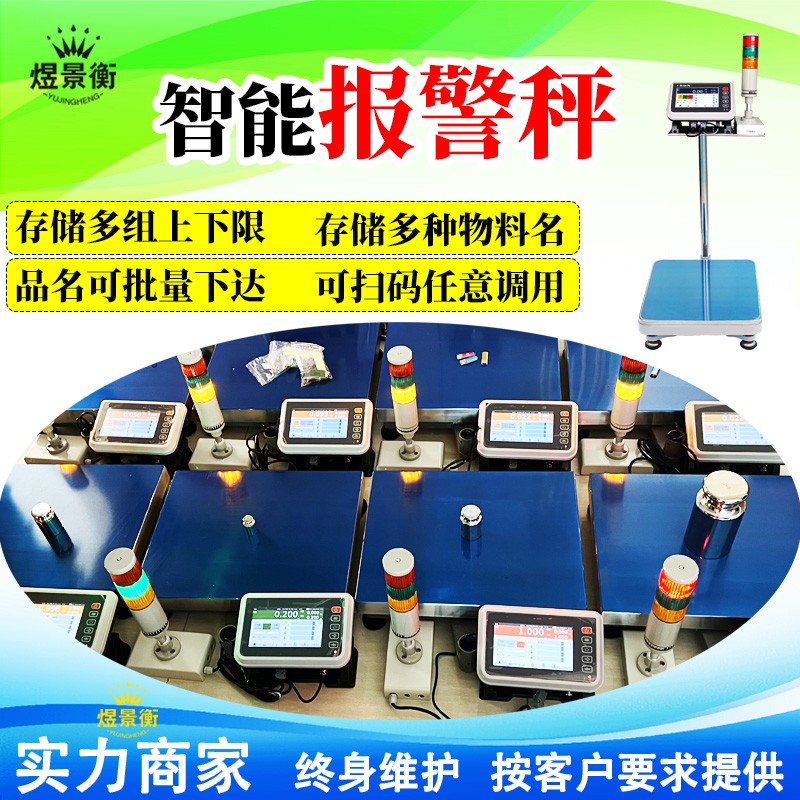
Operation Guide for Touchscreen Electronic Scale: Custom Label Format+Printing Label Function Settings
A Comprehensive Guide to Customizing Labels and Printing Settings for Touchscreen Electronic Scales
Recommended series of industrial electronic scales for Suzhou Yujingheng brand, including YJH-GS assembly line automatic weighing scale, YJH-T7 intelligent electronic platform scale, YJH-A7 intelligent electronic table scale, YJH-B7 intelligent electronic balance, YJH-T industrial weighing electronic platform scale, YJH-A industrial weighing electronic table scale, YJH-B high-precision electronic balance, YJH-AI intelligent receiving scale, YJH-DWS e-commerce express logistics scanning code, photography and weighing integrated machine, etc
1、 Preparation work
1. Confirm hardware compatibility
Check if the electronic scale supports touch screen operation and label printing function
Prepare the matching printer (thermal/adhesive) and label paper (size needs to match the actual label)
Ensure that the printer is properly connected to the electronic scale (USB/serial/Bluetooth)
2. Label design ideas
Determine fixed content: company name LOGO、 Product category, etc
Planning dynamic variables: weight, date, time, product code, etc
Design label size (mm), such as common 50 × 30, 60 × 40, etc
2、 Detailed steps for customizing label format
1. Enter tag editing mode
Touch screen operation path:
Operation Guide for Touchscreen Electronic Scale: Custom Label Format+Printing Label Function Settings
Main menu → Settings → Label settings/Print format → New template/Edit
(Some devices require password input, such as 22222 or 39705)
2. Set basic parameters for labels
Key settings:
Size settings: F-00 (width), F-01 (height), enter the actual label paper size
Label spacing (multi label): Set the spacing distance between labels
Margin adjustment: Set the distance between the content area and the edge of the label
3. Add tag elements (three-step method)
Step 1: Add static text
Click on the 'Text' tool → Click in the editing area → Enter content (such as' Product Label ') → Adjust font/size/position
Step 2: Insert dynamic variables
Click on the 'Variables' tool ->select the data source (such as weight, date, time, operator) ->place it in the appropriate location
Common variable identifiers: * 1 # (weight), * 2 # (unit price), * 3 # (total price), * D # (date), * T # (time)
Step 3: Add barcode/QR code
Click on the 'Barcode' tool ->select type (CODE128/EAN13/QR code) ->set data source (fixed value or variable)
Adjust barcode size and position to ensure clarity and scannability
4. Design layout example
plaintext
-------------------
Product Name: {Product Name}
Product Code: {Code}
-------------------
Weight: {Weight} kg
Date: {Date} Time: {Time}
-------------------
3、 Detailed explanation of printing function settings
1. Printer connection and configuration
Physical connection:
USB connection: directly plug into the USB port of the electronic scale
Serial port connection: Use RS232 cable to connect and configure communication parameters (baud rate, data bits, parity bits)
Bluetooth connection: After pairing, enter the PIN code (usually 1234)
Printer settings:
Ensure that the printer is in label mode (some printers need to be turned off and switched on by pressing the FEED+PANSE keys)
Set parameters such as printing density and speed (path: Settings → Print Settings → Printer Parameters)
2. Printing trigger mode setting
Choose one of the three modes:
Trigger methodSet pathApplicable scenarios
Manual printingCheck 'Manual trigger' → After weighing, press the 'Print' buttonScene that needs to be confirmed before printing
Auto PrintCheck 'Automatically print after stable weight'Rapid assembly line operation
Scan code triggerCheck 'Scan and print' → Scan the product code to automatically print the corresponding labelFast sorting in warehousing and logistics
3. Save and apply label templates
After the design is completed, click 'Save' ->enter the template name/number (such as' Template 001 ')
Can set 'default template', automatically called during weighing
Associate exclusive templates for different products: Product Management → Select Product → Specify Label Template
4、 Example of Practical Process
Complete operation steps:
Employee swipe card/scan code login (record operator)
Scan product barcode (automatically load product information and corresponding label template)
Place the product on the weighing platform and automatically weigh it after stabilizing
The system generates labels based on preset templates (including weight, product information, etc.)
Press the 'Print' button (manual mode) or automatic print (automatic mode)
Tear off the label and stick it on the product or packaging
5、 Common Problems and Solutions
1. Misalignment of printed content
Check if the label size setting is consistent with the actual paper
Calibrate printer paper sensor (path: Settings → Printer Settings → Calibration)
2. Dynamic variables do not display/display abnormally
Confirm if variable binding is correct (reselect data source)
Check if the variable format is correct (such as weight with unit 'kg')
3. Printer not responding
Check if the connection is secure, try restarting the printer and electronic scale
Ensure that the printer has sufficient paper and normal power supply
4. Incomplete tag content
Check if the label size is too small to accommodate all the content
Adjust element position or reduce font size
6、 Efficient usage techniques
Batch import template:
Edit multiple label templates using Excel and save them as CSV files
Import the electronic scale through a USB drive and complete multiple template settings at once
Product and label association:
Specify label templates for each product in the product database
Scan the product barcode during weighing to automatically call the corresponding template, achieving 'one product, one label'